
Project overview
Open a project to land on its Overview, then use the tabs across the top to run every part of the job — photos, contacts, crew, agreements, invoices, and a full activity log.
Open in Stageory- 1
Open a project
Land on Overview.
- In Projects, open a project to land on its Overview.
- The header shows the property, stage dates, duration, project type, and a Lead → Active → Staging → Destaging → Closed pipeline.
app.stageory.com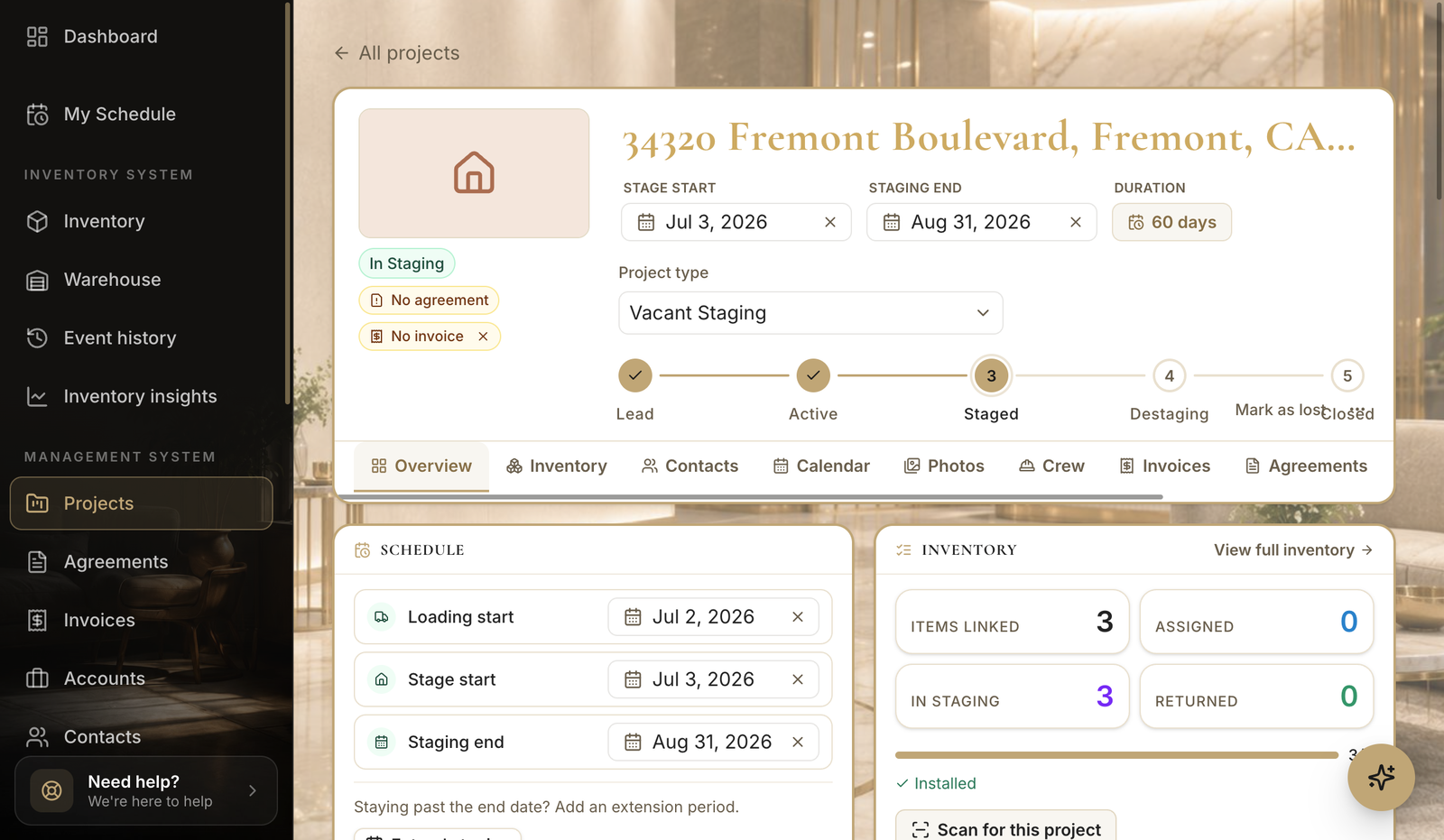
- 2
Photos
Before/after & reference.
- Open the Photos tab for before/after shots and on-site reference photos.
- Use Upload photos to add them, or Share to send them out.
app.stageory.com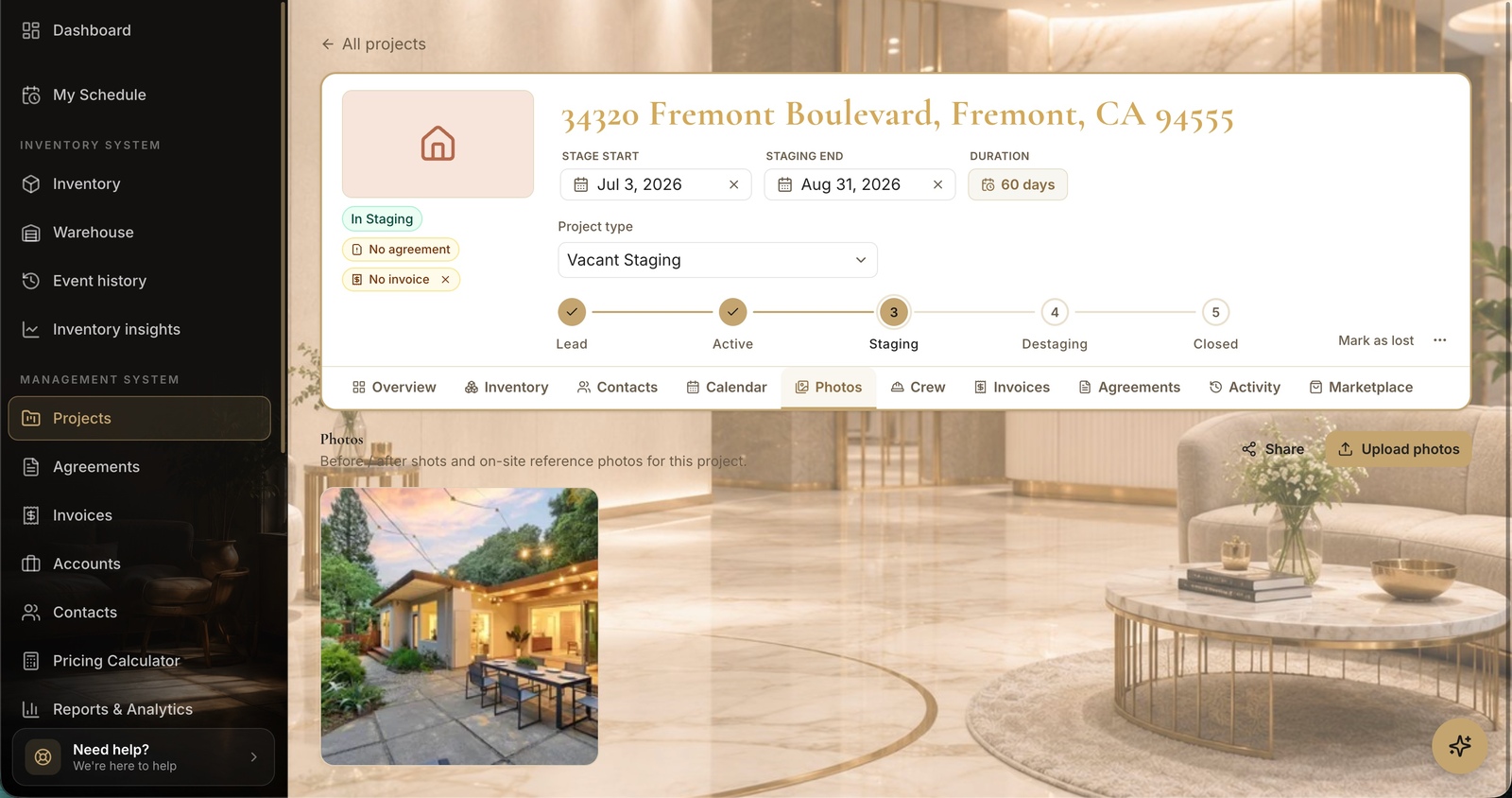
- 3
Contacts
The people involved.
- Open Contacts to see everyone on the project — the client, realtor, and more.
- Mark a Primary contact and Add contact as needed.
app.stageory.com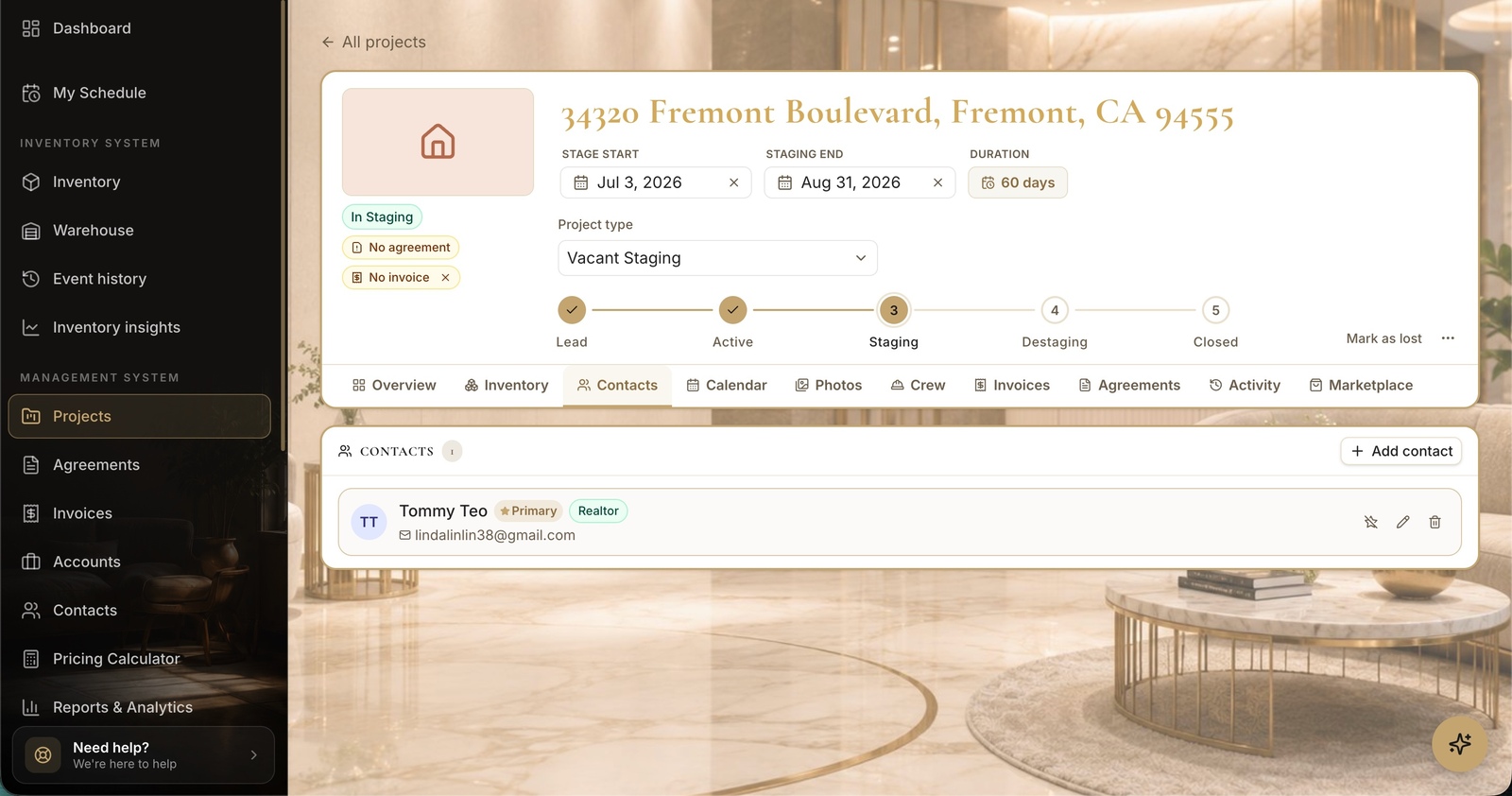
- 4
Crew
Who's working it.
- Open Crew to add the people working this project — everyone here sees its schedule on their own My Schedule.
- Use Send calendar invitations to email them the load-in and staging dates.
app.stageory.com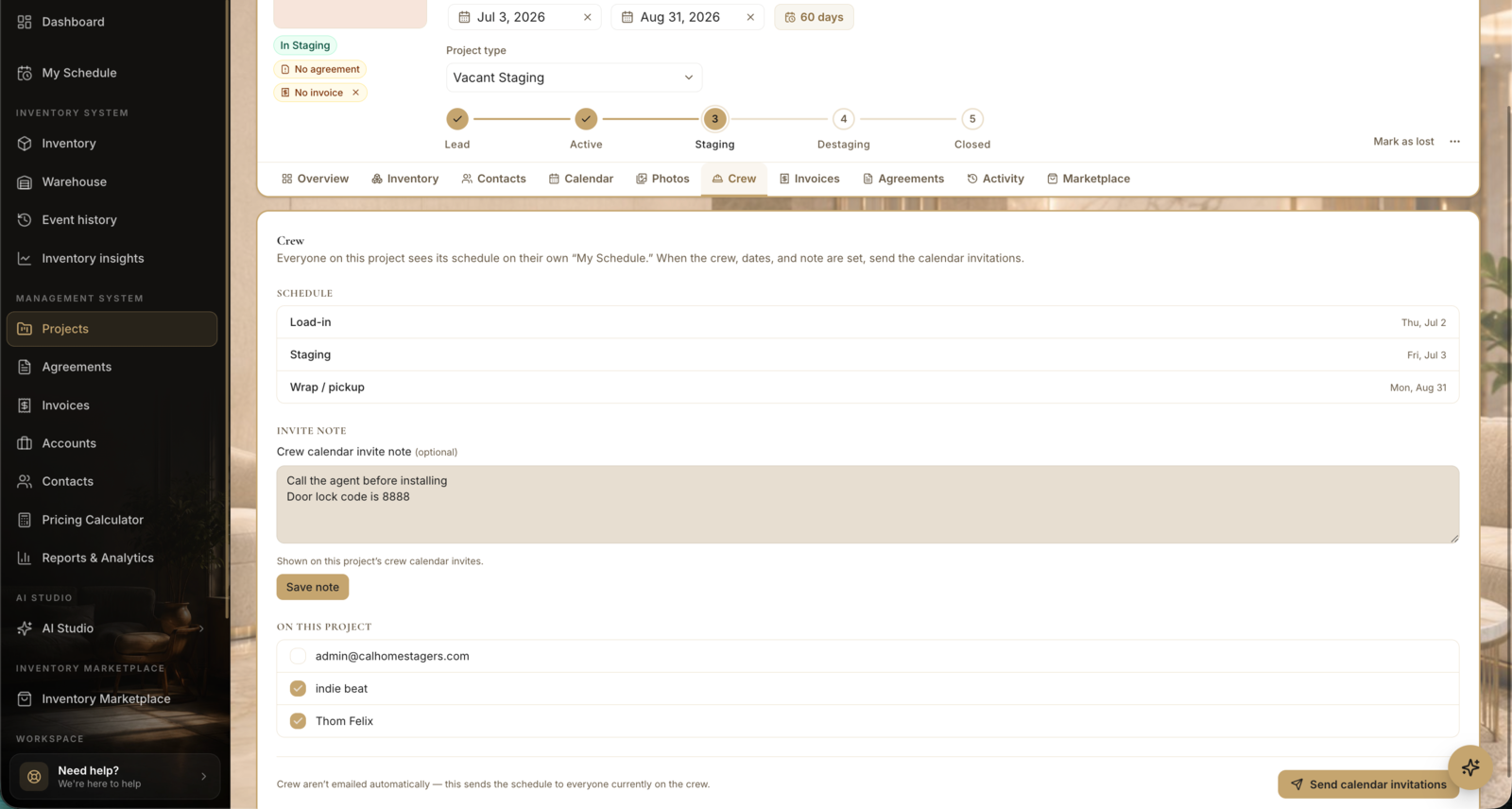
- 5
Agreements
Track signatures.
- Open Agreements to track signatures for this project.
- Click New agreement to start one.
app.stageory.com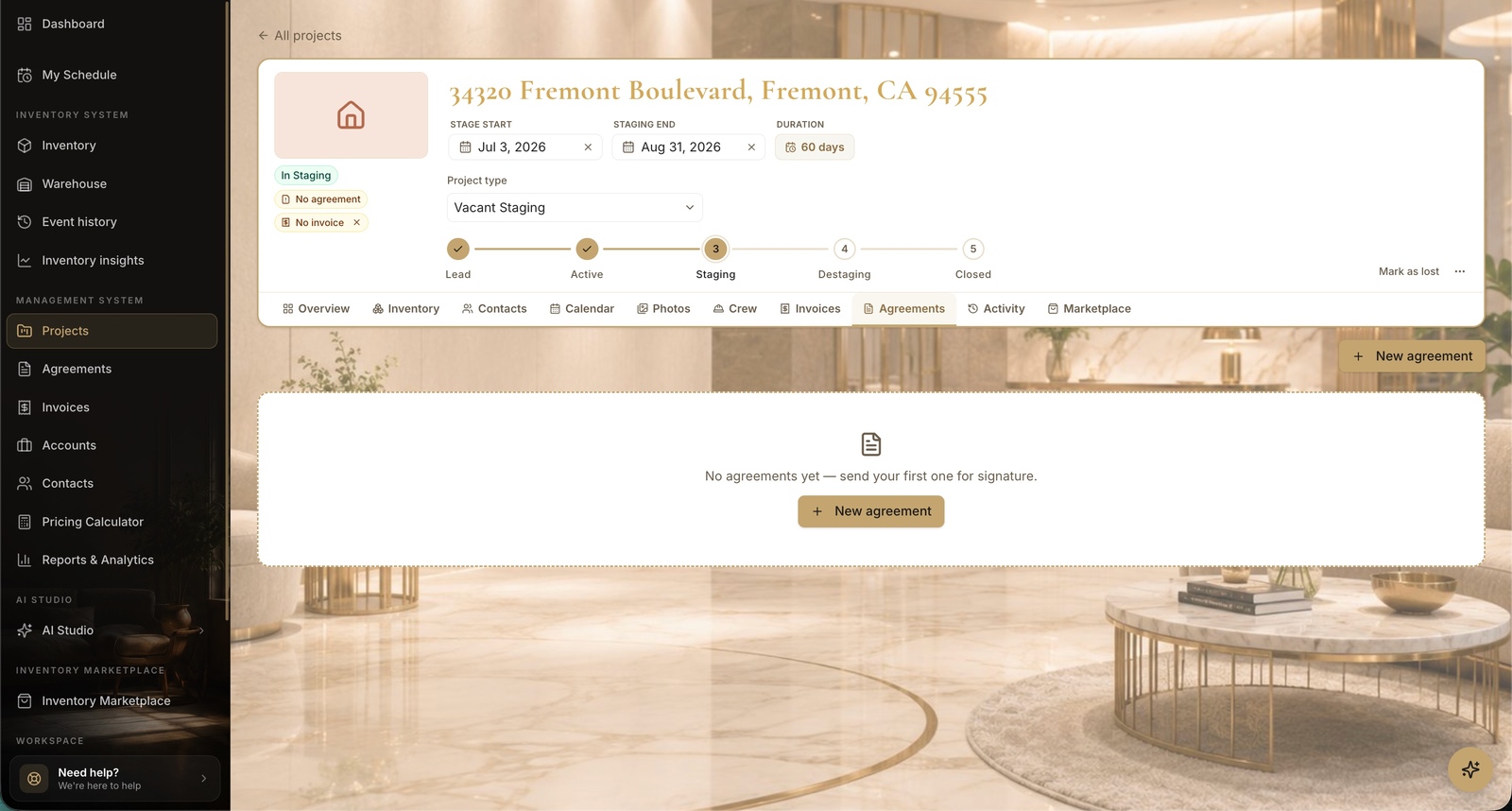
- 6
Send an agreement
Pick signees.
- Step through the send flow: choose signees (project contacts) and your countersigners.
- Click Next to set the document and send it for signature.
app.stageory.com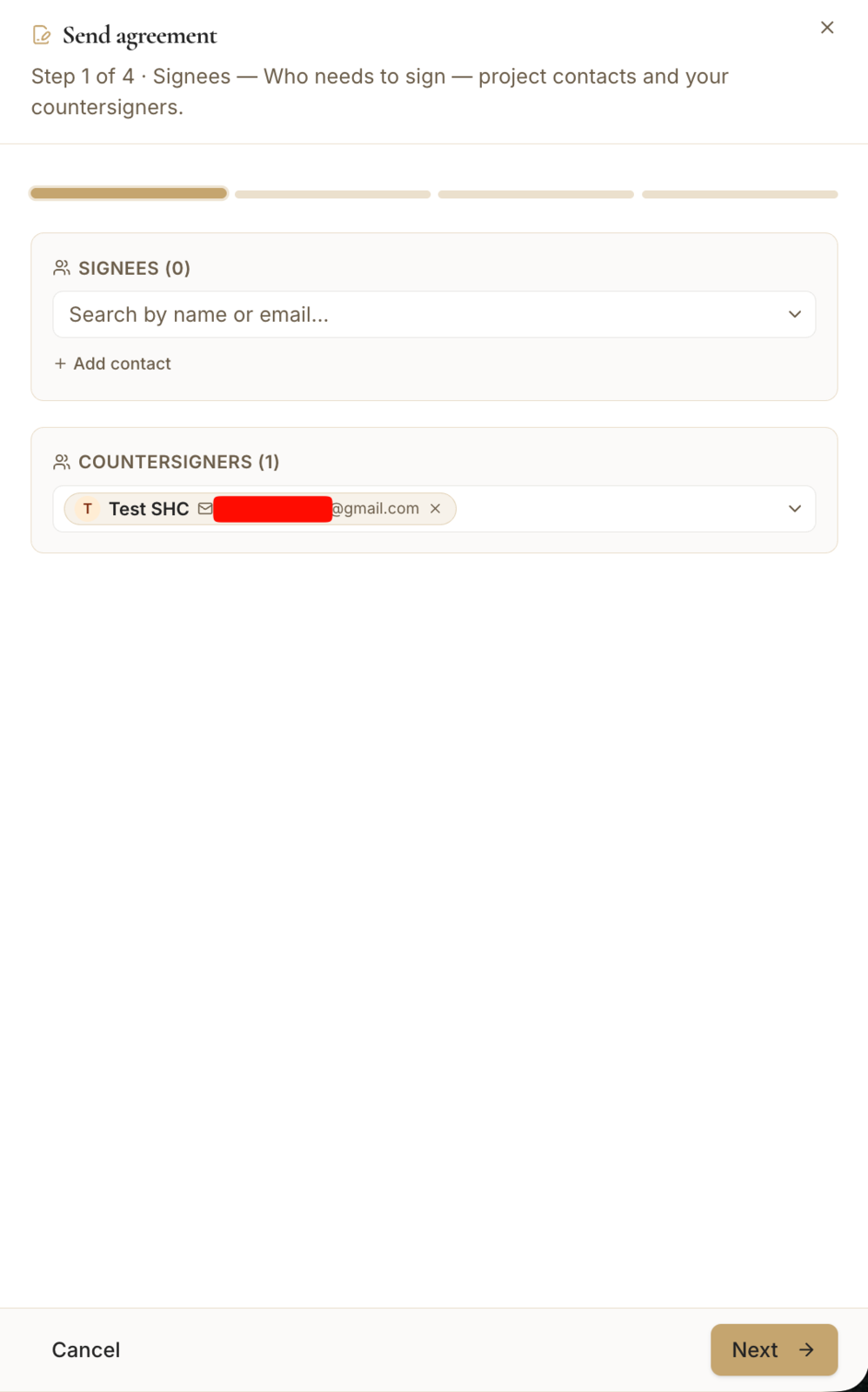
- 7
Invoices
Bill the job.
- Open Invoices to record the contract amount, manage staging extensions and auto-renew, and raise invoices.
- Click Add invoice to bill the client for this project.
app.stageory.com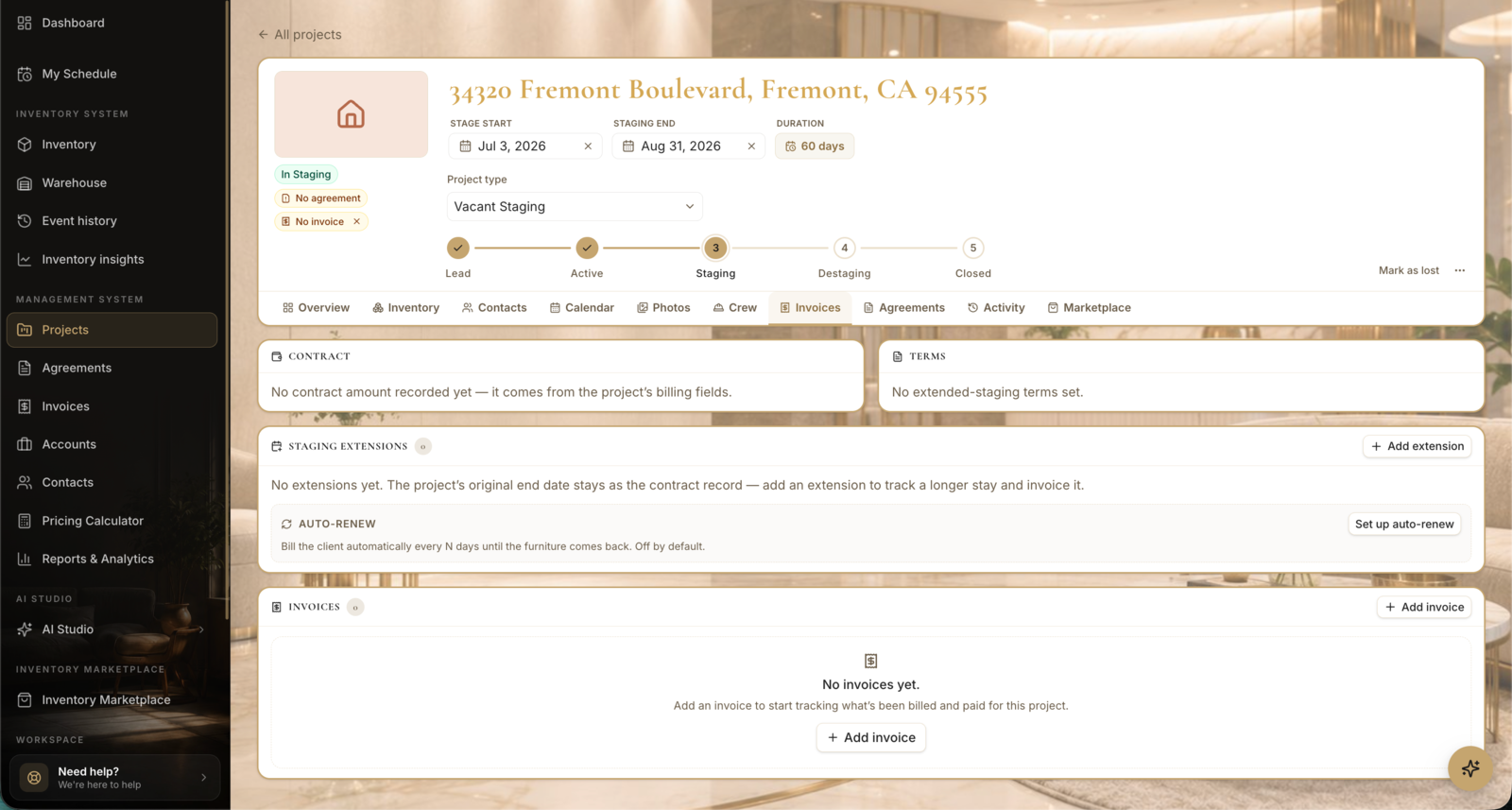
- 8
Activity
The full audit log.
- Open Activity for a timestamped log of everything that happened — created, updated, invited, sent, signed, and more.
- Filter by action type to find a specific change.
app.stageory.com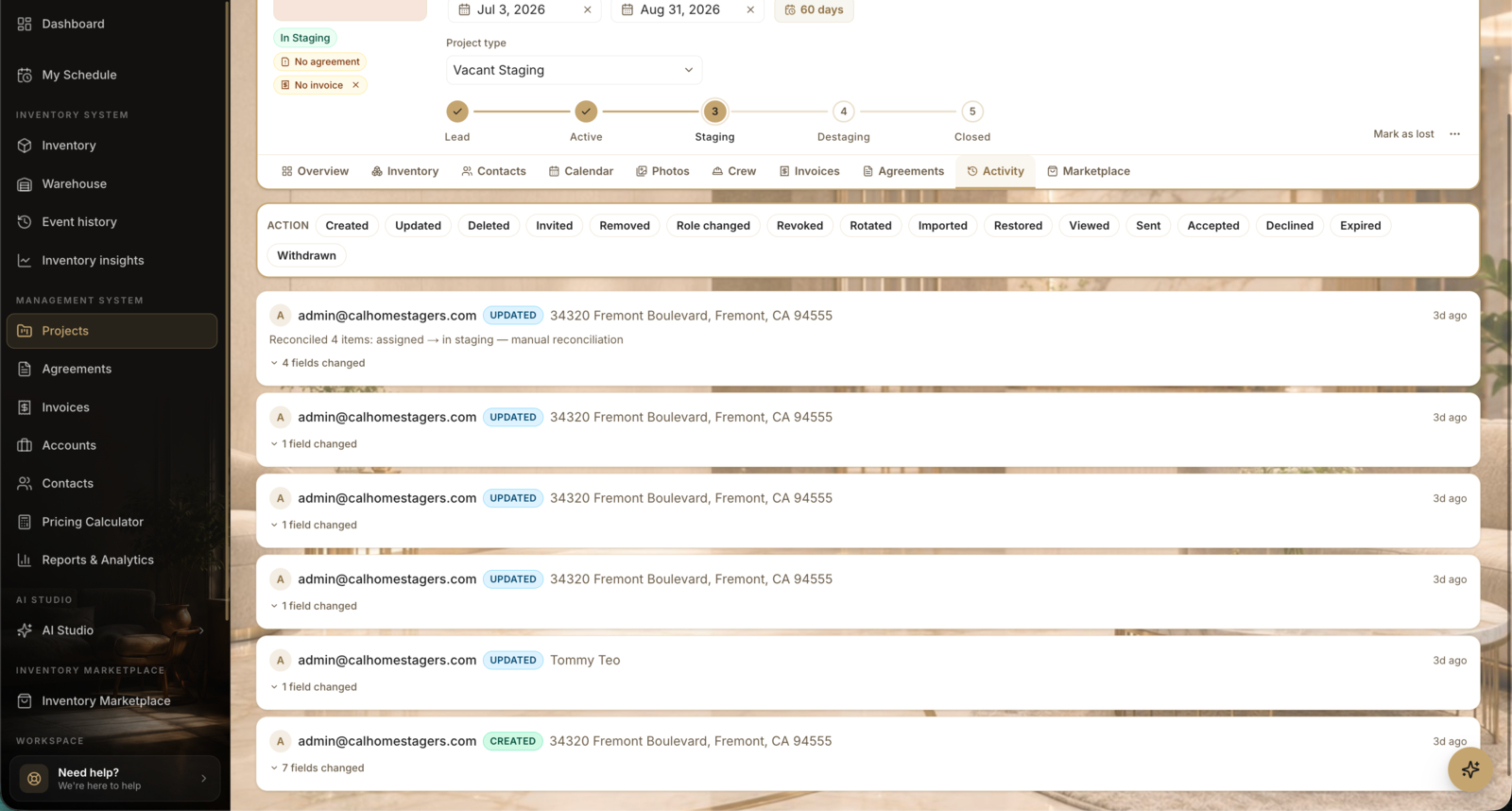
Tips
- The tab bar is the same on every project, so the layout never changes job to job.
- Inventory, Calendar, and Marketplace each have their own help article.
Still need help?
Can't find what you're looking for? Our team is here.