
Warehouses
The Warehouse is where every physical thing lives — bound items, unbound tags ready to stick on something, and untagged items waiting for a tag. Mint and print QR tags to start tracking your inventory.
Open in Stageory- 1
Open Warehouse
From the sidebar.
- In the sidebar under Inventory System, open Warehouse.
- It starts empty — click New tags (top right) to mint your first QR tags.
app.stageory.com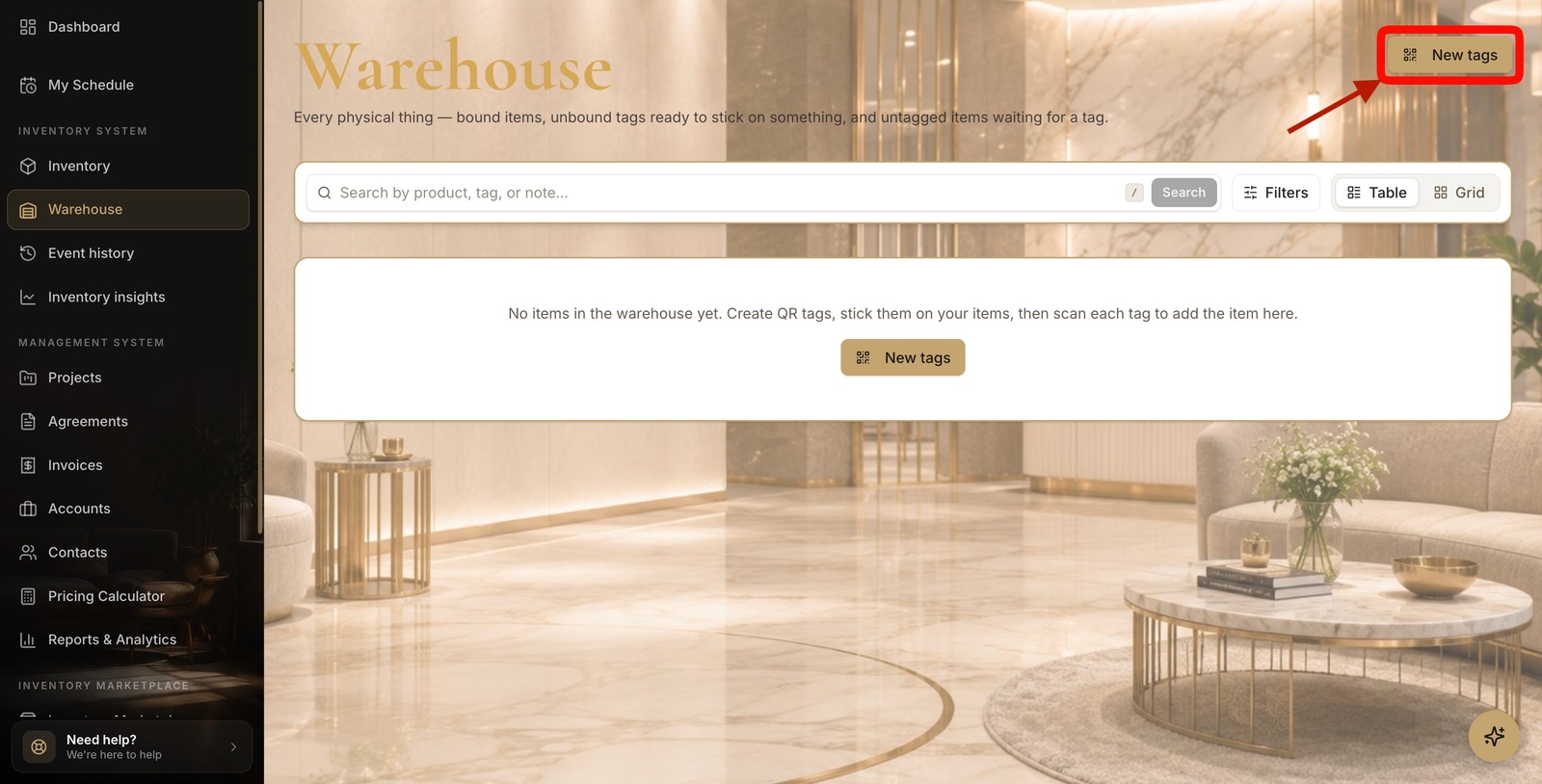
- 2
Mint QR tags
Allocate tag ids.
- Set how many to create in Count (up to 500 per batch).
- Optionally pick a category and add an internal note for the batch.
- Click Create tags — they land as unbound tags, ready to print and bind later.
app.stageory.com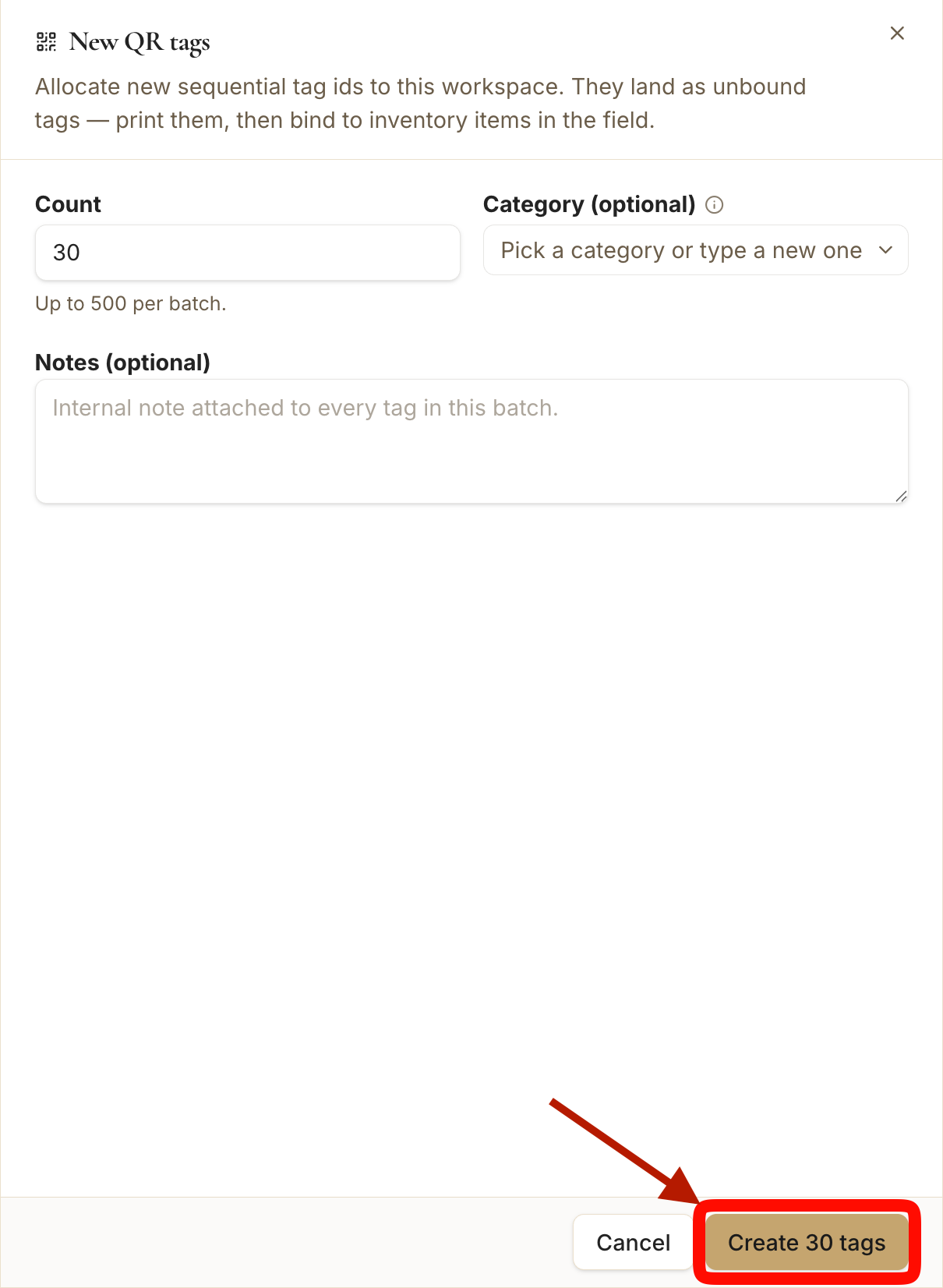
- 3
Print the labels
Tags minted.
- Your tags are minted with sequential ids (e.g. JASONGG-00000001).
- Click Print labels to print them now, or close and print later from the warehouse feed.
app.stageory.com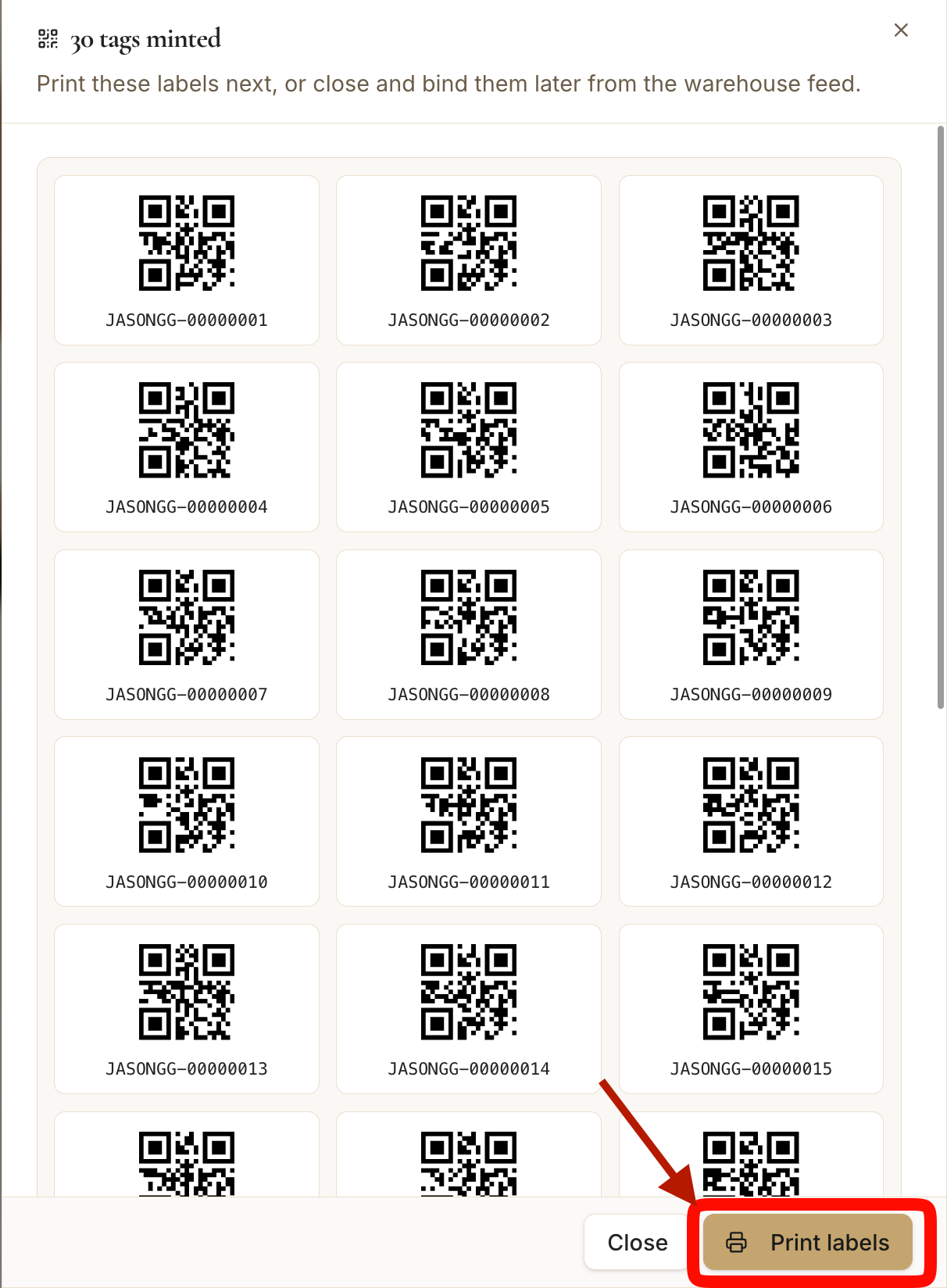
- 4
Pick a label size
Print & stick.
- Choose a label layout — Avery sheets, thermal 4×6, small grid, or square stacks — or save a template to reuse.
- Click Print tags, stick each label on an item, then scan it to bind the tag and add the item to your warehouse.
app.stageory.com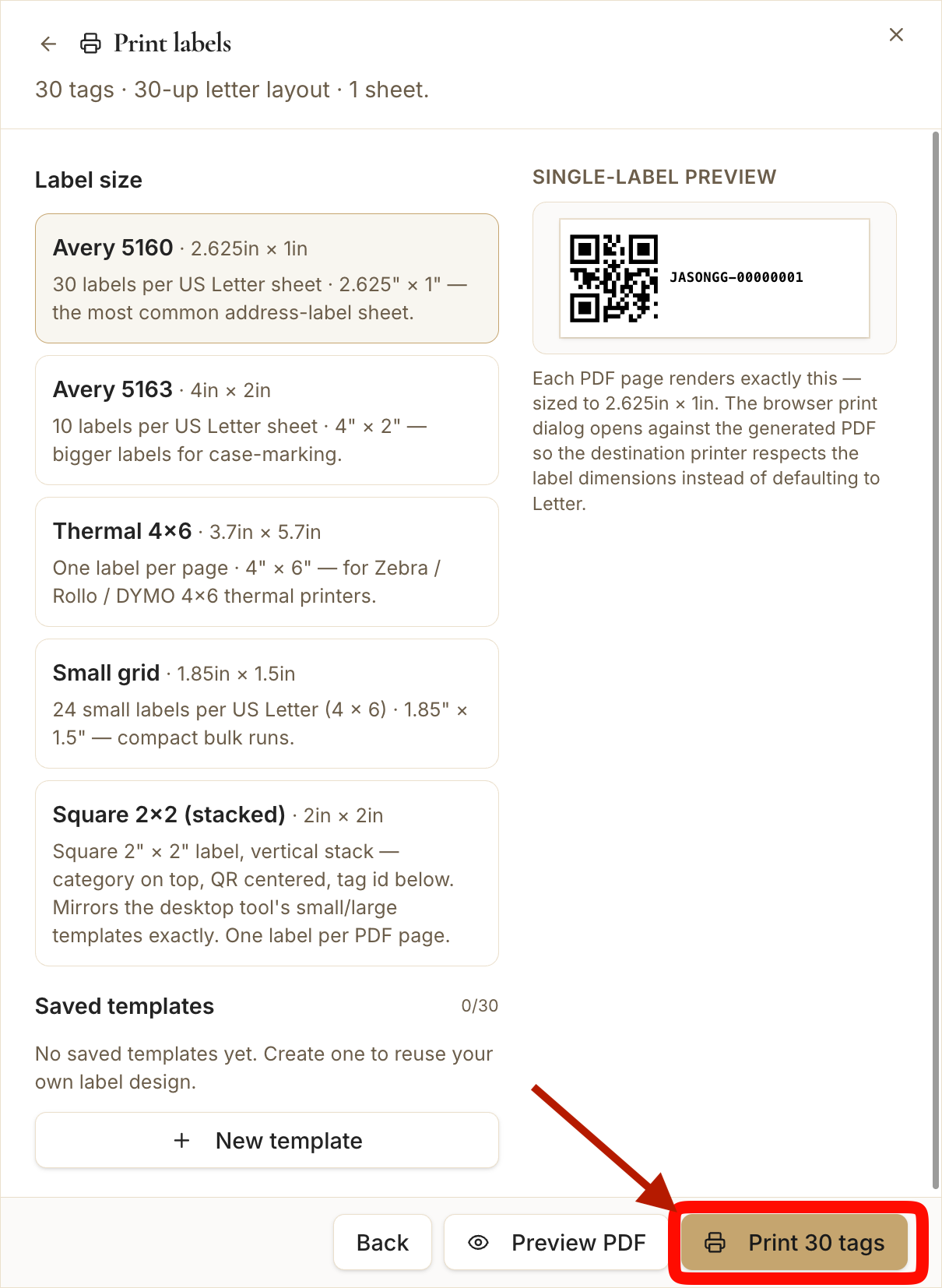
Tips
- Print QR tags in batches so every new unit is scannable the moment it arrives.
Still need help?
Can't find what you're looking for? Our team is here.