
Signing settings
Set who countersigns your agreements and the email they're sent from, so requests reach clients branded as your workspace.
Open in Stageory- 1
Open Signing settings
Settings → Signing.
- Open Settings, then Signing.
app.stageory.com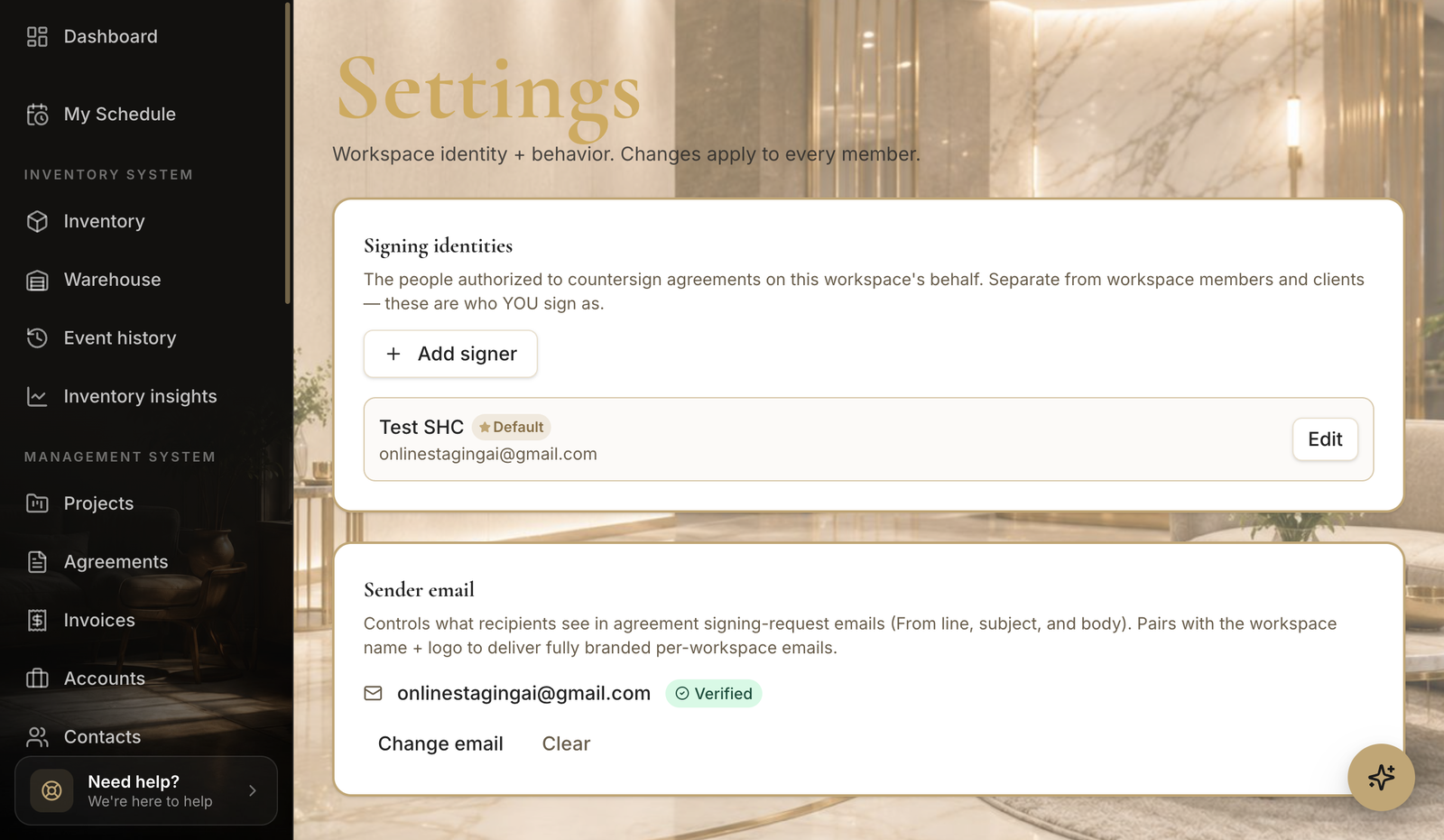
- 2
Add a signing identity
Who you sign as.
- Under Signing identities, click Add signer — these are the people authorized to countersign agreements on the workspace's behalf (separate from members and clients).
- Mark one as the default countersigner.
app.stageory.com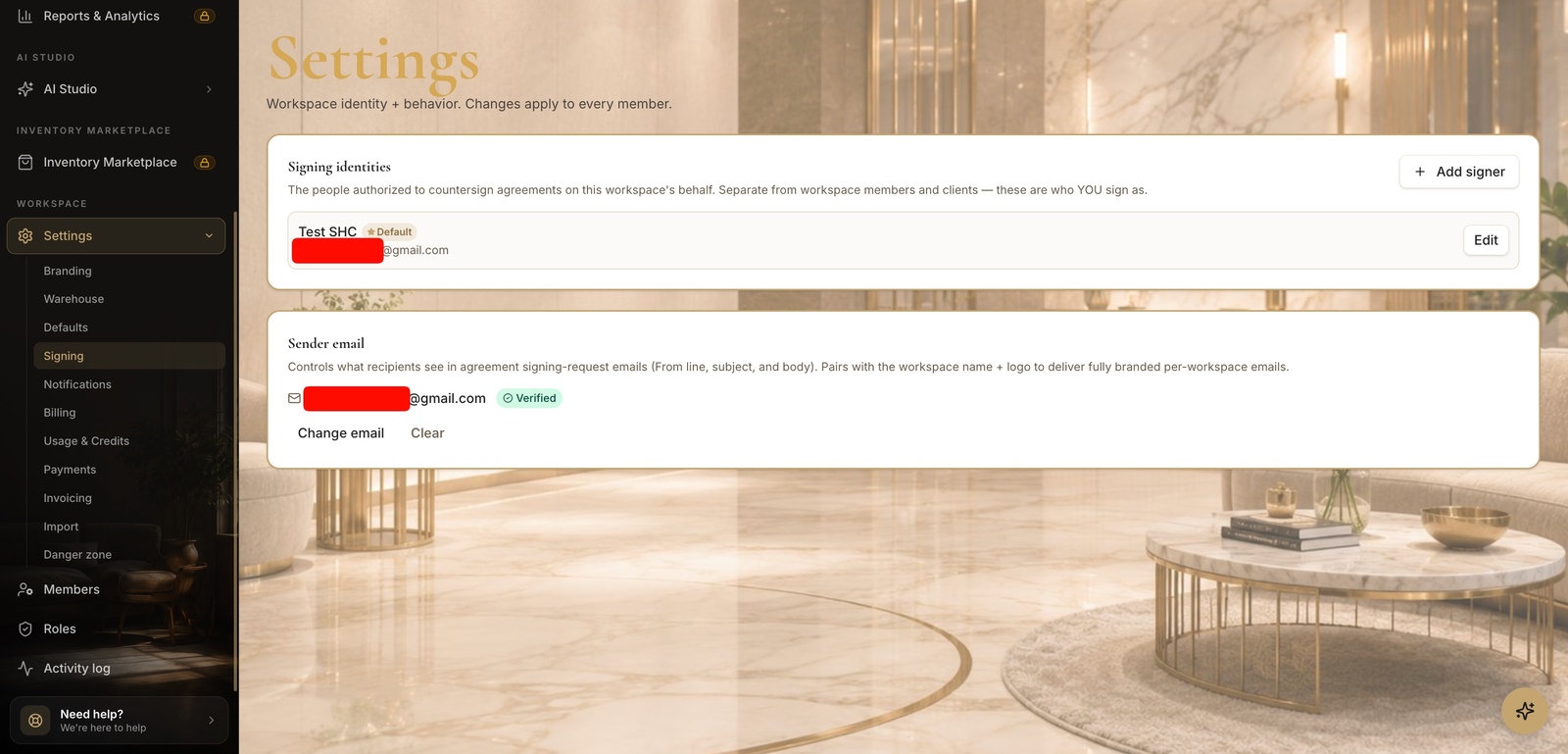
- 3
Set the sender email
Branded requests.
- Under Sender email, set and verify the address that signing-request emails come from — it pairs with your workspace name + logo for fully branded emails.
- Sending stays paused until a verified sender email is set.
Tips
- Sending is paused until a verified sender email is configured here.
Still need help?
Can't find what you're looking for? Our team is here.